Start here
Before you start
Make sure the Epson EcoTank ET‑16600 is powered on, connected to the same Wi‑Fi network as your Mac, and has paper cleared from the scanner glass or automatic document feeder. You should also know where scanned documents should be saved, such as a Finance or HR folder synced from SharePoint or OneDrive.
Complete setup
Install Epson ScanSmart from start to finish
-
Download the correct Epson package
Open the official Epson support page for the ET‑16600. Click Downloads at the top of the page. In the Operating System dropdown, choose Windows 11 for a Windows 11 computer, or macOS 26.x for a Mac. Then download the Drivers and Utilities Combo Package Installer under Recommended For You.
-
Install it before opening ScanSmart
Run the installer and follow the prompts. When it finishes, restart your Mac. This restart matters because it lets macOS finish loading the printer and scanner components.
-
Complete the printer setup screens
After restart, Epson may show several setup screens. Confirm the ink is charged, continue past fax setup, choose No when asked about adding a fax queue, and skip Epson Connect.
-
Open Epson ScanSmart
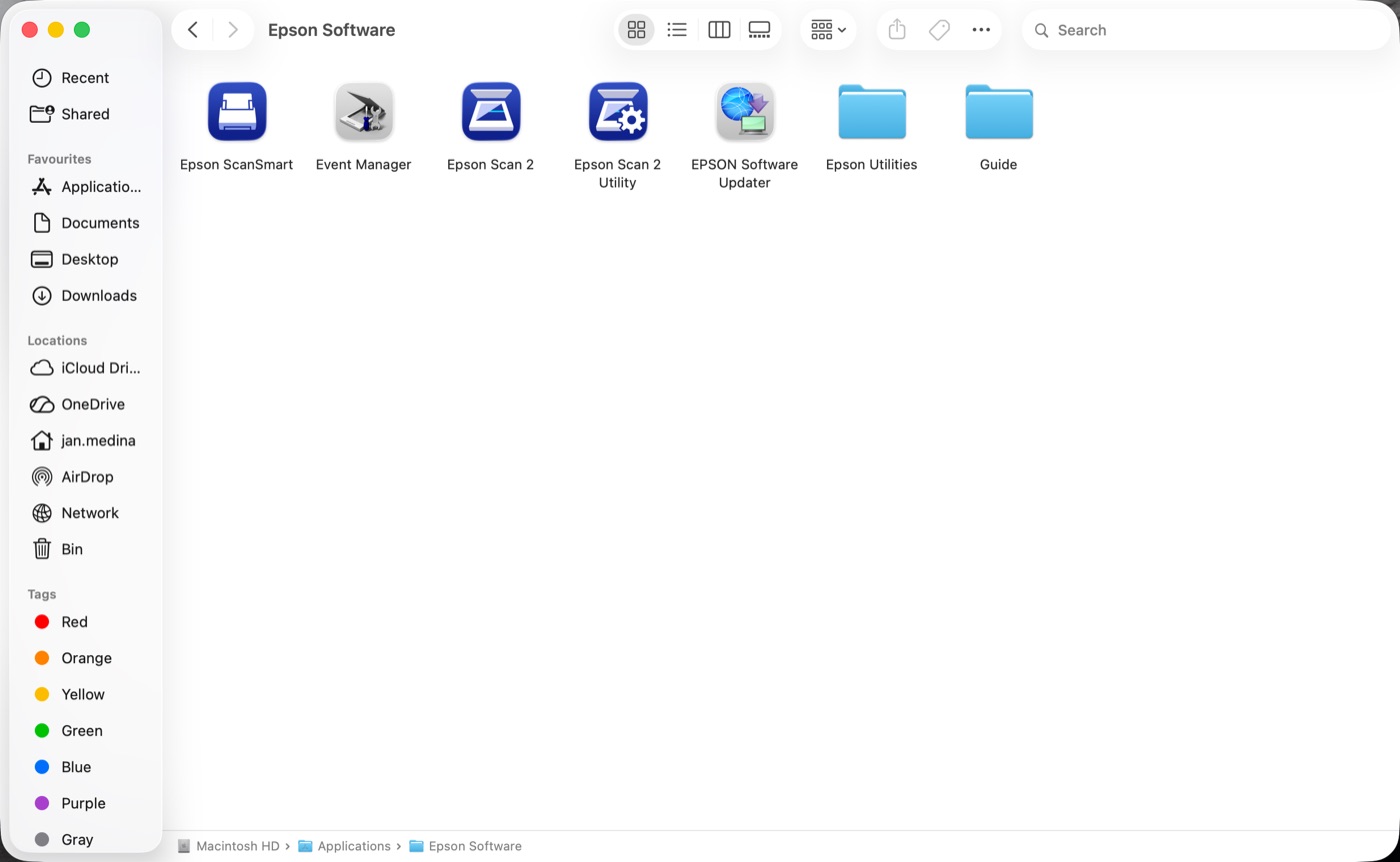
Open Applications or Launchpad, then click Epson ScanSmart. The main screen should show the ET‑16600 and the scan choices.
Open the official Epson ET‑16600 support page
Download these two items
Required package
Drivers and Utilities Combo Package Installer
This is the main installer. It includes the printer driver and the Epson utilities needed for the ET‑16600.
Required scanning app
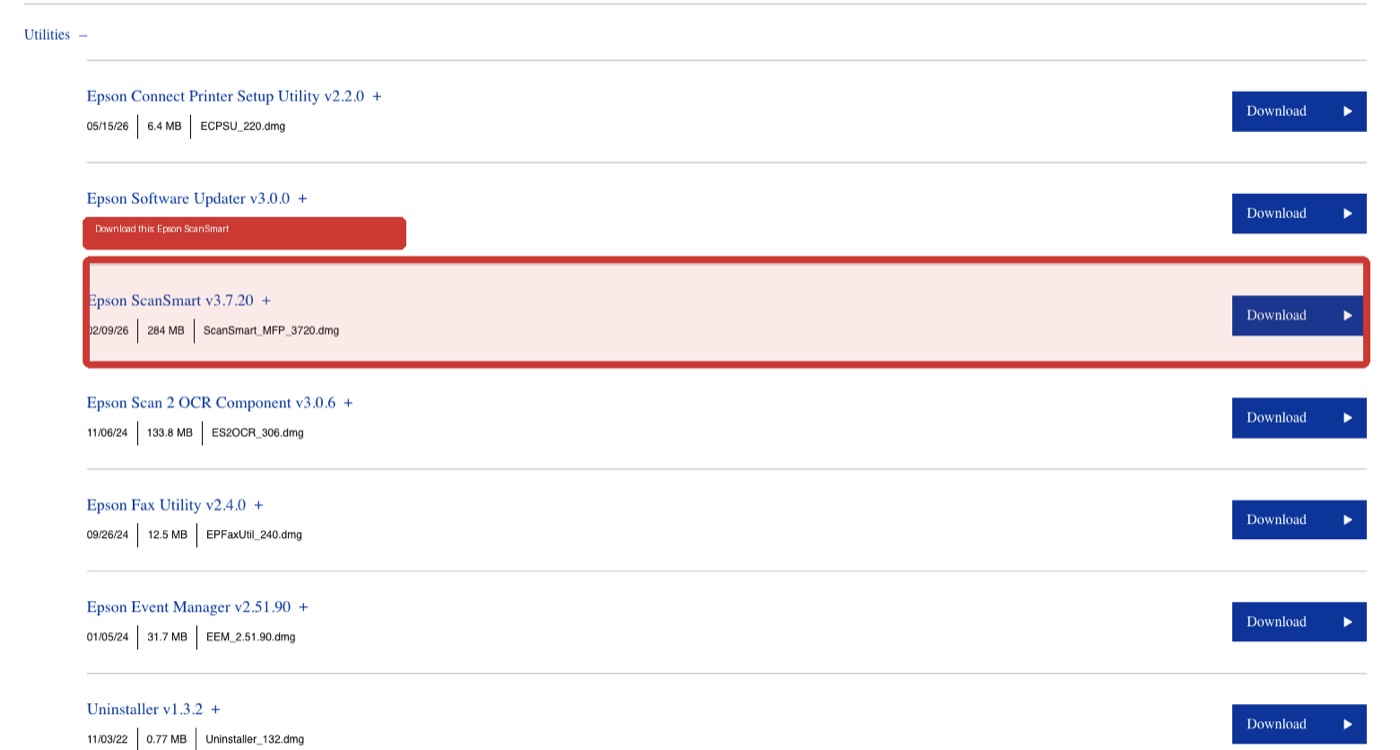
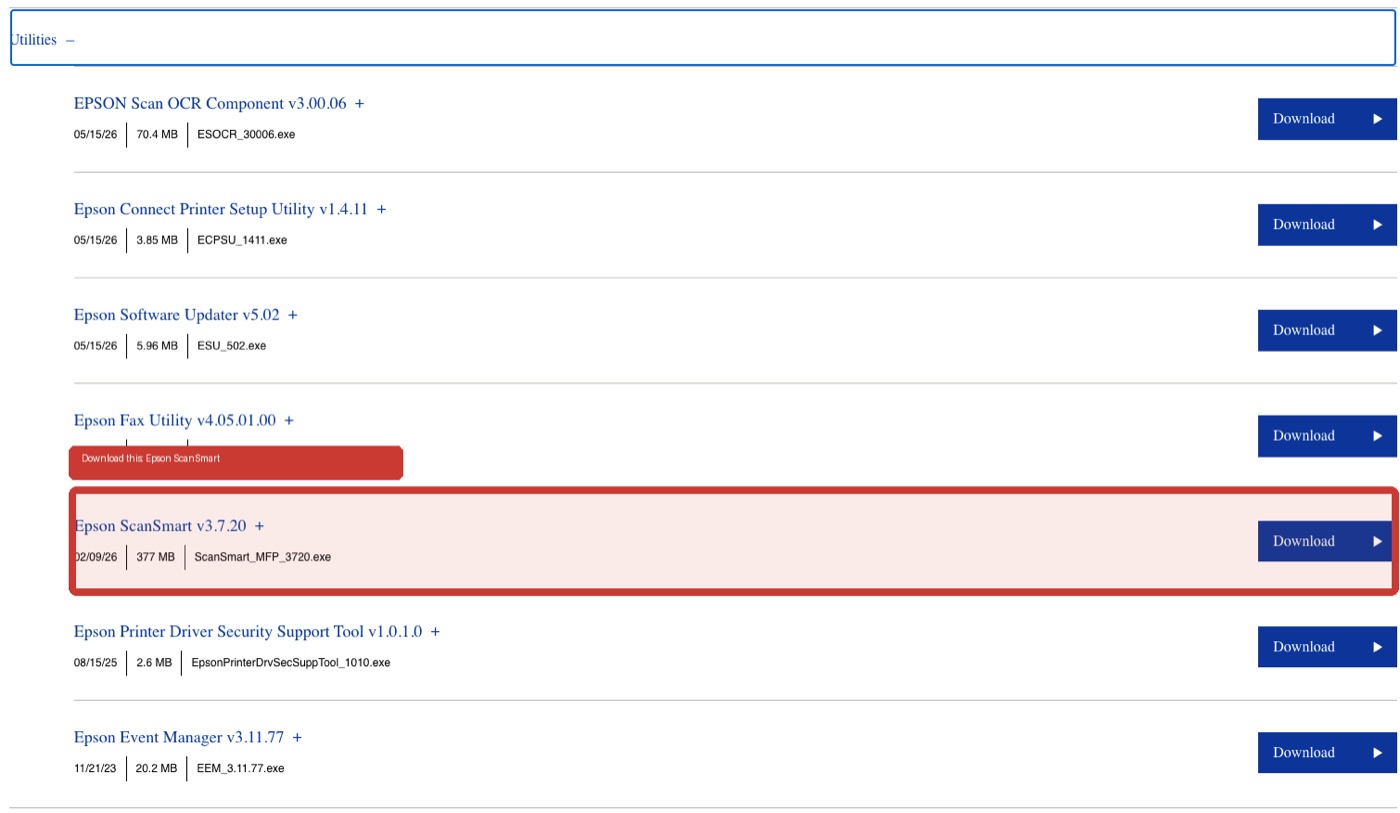
Epson ScanSmart v3.7.20
This is the app users open when they want to scan, preview, save, or attach documents to email.
Where to click on the Epson download page
- Click the Downloads tab at the top of the Epson support page.
- Find Operating System, then open the dropdown.
- Choose Windows 11 if the computer is Windows 11. Choose macOS 26.x if the computer is a Mac running macOS 26.x.
- Under Recommended For You, find Drivers and Utilities Combo Package Installer. Click the blue Download button on that same row.
- In the Utilities section, also find Epson ScanSmart and click the blue Download button on that same row.
Set once
Recommended Finance and HR settings
Open Epson ScanSmart, click the gear icon in the top-right corner, and set these defaults. These choices are designed for invoices, contracts, forms, employee records, and other business documents.
- File Format PDF
- Best format for invoices, forms, contracts, and employee records.
- Searchable PDF On
- Lets people search for words inside the file in SharePoint or OneDrive.
- Resolution 300 dpi
- Clear enough for business documents without making files unnecessarily huge.
- Color Mode Color
- Use Grayscale only when the file size needs to be smaller.
- Document Type Text
- Best option for forms, invoices, contracts, and typed records.
- Save Location SharePoint or OneDrive synced folder
- Keeps the scan in the right shared location from the start.
Daily use
How to scan documents
Single-sided document
- Place the document face-down on the scanner glass.
- Click SCAN single-sided in Epson ScanSmart.
- Review the preview carefully.
- Rotate pages, delete blank pages, then save or email.
Double-sided document using the ADF
- Load the pages into the top automatic document feeder.
- Click SCAN double-sided.
- Wait while both sides are scanned automatically.
- Review every page before saving or emailing.
Cloud storage
Save scans to SharePoint or OneDrive
- Open Epson ScanSmart and click the gear icon.
- Set Default Save Location to the correct SharePoint or OneDrive synced folder.
- Scan the document and click Save.
- Wait a few seconds for the file to appear in SharePoint or OneDrive.
Outlook
Attach a scan to email quickly
After scanning and reviewing the preview, click Attach to Email. Microsoft Outlook should open with the PDF already attached. Add the recipients, write the message, and send as normal.
Consistency
File naming rules
Use names that make sense later. Include the document type, person or client name, and date. Avoid vague names like Scan1.pdf.
Invoice-ClientName-2026-06-08.pdf
Contract-SupplierName-2026-06-08.pdf
HR-EmployeeName-FormName-2026-06-08.pdf
Fix common issues
Quick troubleshooting
ScanSmart will not open or says necessary files are missing
Reinstall Epson Event Manager and Epson ScanSmart, then restart your Mac. If the error appeared right after the first installation, a reinstall plus restart usually fixes it.
Printer is not detected
Make sure the ET‑16600 is powered on and connected to Wi‑Fi — it must be on the same network as your Mac.
Scan looks blurry or faint
Increase the resolution to 300 or 400 dpi and clean the scanner glass with a soft, dry cloth.
PDF file is too large
Use Grayscale mode or lower the resolution to 200 dpi for internal documents that don't need full quality.
Scanned pages are sideways or blank
Fix this in the preview screen before saving: rotate sideways pages and delete blank pages there. For double-sided scans, check the pages are loaded face-up and straight in the document feeder, then scan again.